[English](README.md) | 简体中文 PDF2ZH

PDFMathTranslate

科学 PDF 文档翻译及双语对照工具 - 📊 保留公式、图表、目录和注释 *([预览效果](#preview))* - 🌐 支持 [多种语言](#language) 和 [诸多翻译服务](#services) - 🤖 提供 [命令行工具](#usage),[图形交互界面](#gui),以及 [容器化部署](#docker) 欢迎在 [GitHub Issues](https://github.com/Byaidu/PDFMathTranslate/issues)、[Telegram 用户群](https://t.me/+Z9_SgnxmsmA5NzBl) 或 [QQ 用户群](https://qm.qq.com/q/DixZCxQej0) 中提供反馈

近期更新

- [Nov. 26 2024] CLI 现在已支持(多个)在线 PDF 文件 *(by [@reycn](https://github.com/reycn))* - [Nov. 24 2024] 为降低依赖大小,提供 [ONNX](https://github.com/onnx/onnx) 支持 *(by [@Wybxc](https://github.com/Wybxc))* - [Nov. 23 2024] 🌟 [免费公共服务](#demo) 上线! *(by [@Byaidu](https://github.com/Byaidu))* - [Nov. 23 2024] 防止网页爬虫的防火墙 *(by [@Byaidu](https://github.com/Byaidu))* - [Nov. 22 2024] 图形用户界面现已支持意大利语,并获得了一些更新 *(by [@Byaidu](https://github.com/Byaidu), [@reycn](https://github.com/reycn))* - [Nov. 22 2024] 现在你可以将自己部署的服务分享给朋友了 *(by [@Zxis233](https://github.com/Zxis233))* - [Nov. 22 2024] 支持腾讯翻译 *(by [@hellofinch](https://github.com/hellofinch))* - [Nov. 21 2024] 图形用户界面现在支持下载双语文档 *(by [@reycn](https://github.com/reycn))* - [Nov. 20 2024] 🌟 提供了 [在线演示](#demo)! *(by [@reycn](https://github.com/reycn))*

效果预览

在线演示 🌟

### 免费服务 () 你可以立即尝试 [免费公共服务](https://pdf2zh.com/) 而无需安装 ### Hugging Face 在线演示 你可以立即尝试 [在 HuggingFace 上的在线演示](https://huggingface.co/spaces/reycn/PDFMathTranslate-Docker) 而无需安装 请注意,演示的计算资源有限,因此请避免滥用

安装和使用

我们提供了三种使用该项目的方法:[命令行工具](#cmd)、[便携式安装](#portable)、[图形交互界面](#gui) 和 [容器化部署](#docker).

方法一、命令行工具

1. 确保安装了版本大于 3.8 且小于 3.12 的 Python 2. 安装此程序: ```bash pip install pdf2zh ``` 3. 执行翻译,生成文件位于 [当前工作目录](https://chatgpt.com/share/6745ed36-9acc-800e-8a90-59204bd13444): ```bash pdf2zh document.pdf ```

方法二、便携式安装

无需预先安装 Python 环境 下载 [setup.bat](https://raw.githubusercontent.com/Byaidu/PDFMathTranslate/refs/heads/main/setup.bat) 并双击运行

方法三、图形交互界面

1. 确保安装了版本大于 3.8 且小于 3.12 的 Python 2. 安装此程序: ```bash pip install pdf2zh ``` 3. 开始在浏览器中使用: ```bash pdf2zh -i ``` 4. 如果您的浏览器没有自动启动并跳转,请用浏览器打开: ```bash http://localhost:7860/ ``` 查看 [documentation for GUI](./docs/README_GUI.md) 获取细节说明

方法四、容器化部署

1. 拉取 Docker 镜像并运行: ```bash docker pull byaidu/pdf2zh docker run -d -p 7860:7860 byaidu/pdf2zh ``` 2. 通过浏览器打开: ``` http://localhost:7860/ ``` 用于在云服务上部署容器镜像:
Deploy Deploy to Koyeb Deploy on Zeabur Deploy to Koyeb

高级选项

在命令行中执行翻译命令,在当前工作目录下生成译文文档 `example-zh.pdf` 和双语对照文档 `example-dual.pdf`,默认使用 Google 翻译服务 cmd 我们在下表中列出了所有高级选项,以供参考: | Option | Function | Example | | -------- | ------- |------- | | files | 本地文件 | `pdf2zh ~/local.pdf` | | links | 在线文件 | `pdf2zh http://arxiv.org/paper.pdf` | | `-i` | [进入图形界面](#gui) | `pdf2zh -i` | | `-p` | [仅翻译部分文档](#partial) | `pdf2zh example.pdf -p 1` | | `-li` | [源语言](#languages) | `pdf2zh example.pdf -li en` | | `-lo` | [目标语言](#languages) | `pdf2zh example.pdf -lo zh` | | `-s` | [指定翻译服务](#services) | `pdf2zh example.pdf -s deepl` | | `-t` | [多线程](#threads) | `pdf2zh example.pdf -t 1` | | `-o` | 输出目录 | `pdf2zh example.pdf -o output` | | `-f`, `-c` | [例外规则](#exceptions) | `pdf2zh example.pdf -f "(MS.*)"` |

全文或部分文档翻译

- **全文翻译** ```bash pdf2zh example.pdf ``` - **部分翻译** ```bash pdf2zh example.pdf -p 1-3,5 ```

指定源语言和目标语言

参考 [Google Languages Codes](https://developers.google.com/admin-sdk/directory/v1/languages), [DeepL Languages Codes](https://developers.deepl.com/docs/resources/supported-languages) ```bash pdf2zh example.pdf -li en -lo ja ```

使用不同的翻译服务

下表列出了每个翻译服务所需的 [环境变量](https://chatgpt.com/share/6734a83d-9d48-800e-8a46-f57ca6e8bcb4),在使用相应服务之前,请确保已设置这些变量 |**Translator**|**Service**|**Environment Variables**|**Default Values**|**Notes**| |-|-|-|-|-| |**Google (Default)**|`google`|None|N/A|None| |**Bing**|`bing`|None|N/A|None| |**DeepL**|`deepl`|`DEEPL_SERVER_URL`,`DEEPL_AUTH_KEY`|`https://api.deepl.com`, `[Your Key]`|See [DeepL](https://support.deepl.com/hc/en-us/articles/360020695820-API-Key-for-DeepL-s-API)| |**DeepLX**|`deeplx`|`DEEPLX_ENDPOINT`|`https://api.deepl.com/translate`|See [DeepLX](https://github.com/OwO-Network/DeepLX)| |**Ollama**|`ollama`|`OLLAMA_HOST`, `OLLAMA_MODEL`|`http://127.0.0.1:11434`, `gemma2`|See [Ollama](https://github.com/ollama/ollama)| |**OpenAI**|`openai`|`OPENAI_BASE_URL`, `OPENAI_API_KEY`, `OPENAI_MODEL`|`https://api.openai.com/v1`, `[Your Key]`, `gpt-4o-mini`|See [OpenAI](https://platform.openai.com/docs/overview)| |**Zhipu**|`zhipu`|`ZHIPU_API_KEY`, `ZHIPU_MODEL`|`[Your Key]`, `glm-4-flash`|See [Zhipu](https://open.bigmodel.cn/dev/api/thirdparty-frame/openai-sdk)| |**Silicon**|`silicon`|`SILICON_API_KEY`, `SILICON_MODEL`|`[Your Key]`, `Qwen/Qwen2.5-7B-Instruct`|See [SiliconCloud](https://docs.siliconflow.cn/quickstart)| |**Azure**|`azure`|`AZURE_ENDPOINT`, `AZURE_API_KEY`|`https://api.translator.azure.cn`, `[Your Key]`|See [Azure](https://docs.azure.cn/en-us/ai-services/translator/text-translation-overview)| |**Tencent**|`tencent`|`TENCENTCLOUD_SECRET_ID`, `TENCENTCLOUD_SECRET_KEY`|`[Your ID]`, `[Your Key]`|See [Tencent](https://www.tencentcloud.com/products/tmt?from_qcintl=122110104)| 使用 `-s service` 或 `-s service:model` 指定翻译服务: ```bash pdf2zh example.pdf -s openai:gpt-4o-mini ``` 或者使用环境变量指定模型: ```bash set OPENAI_MODEL=gpt-4o-mini pdf2zh example.pdf -s openai ```

指定例外规则

使用正则表达式指定需保留的公式字体与字符: ```bash pdf2zh example.pdf -f "(CM[^RT].*|MS.*|.*Ital)" -c "(\(|\||\)|\+|=|\d|[\u0080-\ufaff])" ```

指定线程数量

使用 `-t` 指定翻译时使用的线程数量: ```bash pdf2zh example.pdf -t 1 ```

致谢

- 文档合并:[PyMuPDF](https://github.com/pymupdf/PyMuPDF) - 文档解析:[Pdfminer.six](https://github.com/pdfminer/pdfminer.six) - 文档提取:[MinerU](https://github.com/opendatalab/MinerU) - 多线程翻译:[MathTranslate](https://github.com/SUSYUSTC/MathTranslate) - 布局解析:[DocLayout-YOLO](https://github.com/opendatalab/DocLayout-YOLO) - 文档标准:[PDF Explained](https://zxyle.github.io/PDF-Explained/), [PDF Cheat Sheets](https://pdfa.org/resource/pdf-cheat-sheets/) - 多语言字体:[Go Noto Universal](https://github.com/satbyy/go-noto-universal)

贡献者

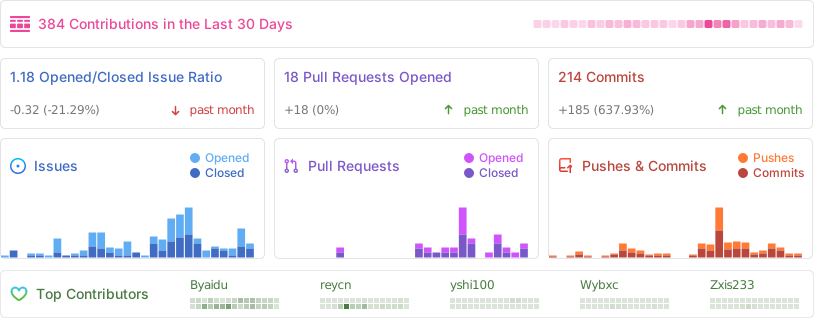
![Alt](https://repobeats.axiom.co/api/embed/dfa7583da5332a11468d686fbd29b92320a6a869.svg "Repobeats analytics image")

星标历史

Star History Chart